
MusicBrainz Picard is a cross-platform tool for accurately tagging and organizing music files using the MusicBrainz database and audio fingerprinting technologies.
This article explains how to install Picard, support various formats, and use its features like CD lookups and metadata tagging to manage your music collection effectively.
Key Conditions That Change Musicbrainz Picard
While MusicBrainz Picard is designed to support a wide range of music file formats for effective tagging and organization, several conditions and limitations can influence how well it functions in specific environments. These conditions include the compatibility of file formats, the availability of necessary plugins, and the specific characteristics of the music files being processed. Understanding these factors allows users to optimize their use of Picard and troubleshoot common issues related to file support and tagging accuracy.

support for various music formats, making it compatible with different file types and ensuring accurate tagging.
1. The factors with the biggest effect
- Supported formats: Picard natively supports formats such as FLAC, MP3, OGG, M4A, and WAV. Its ability to correctly read and write tags depends on whether the format’s tagging standard is compatible with Picard’s tagging system.
- Compression and codec support: Certain proprietary or less common audio codecs may not be fully compatible with Picard, especially if the codec does not support standard tagging or metadata embedding.
- File integrity and DRM: Damaged files or those protected with digital rights management (DRM) often fail to be processed correctly. Picard cannot modify or read protected files without removing the restrictions, which is often illegal and incompatible with many formats.
2. What evidence or details to check
- File format documentation: Confirm whether the specific format of your music files is supported by checking the official documentation or plugin support pages on the Picard website.
- Plugin requirements: Some formats or features, such as advanced tagging or cover art embedding, require plugins. Ensure that these plugins are installed and up to date.
- File metadata compatibility: Verify whether your files already contain metadata that might conflict with Picard’s tagging norms, such as non-standard tags or corrupted tags.
3. When the usual advice does not apply
- If files are in uncommon or unsupported formats, consider converting them into supported formats like FLAC or MP3 before tagging with Picard. Converting can sometimes lead to loss of quality or tags, so it should be done cautiously.
- In cases where files contain DRM protections, removing or bypassing DRM is often illegal and can make processing with Picard impossible. Instead, obtain DRM-free copies if possible or use authorized tools that respect licensing agreements.
- When dealing with large collections with inconsistent tagging standards, it may be necessary to manually correct or normalize tags before running automatic identification and tagging in Picard, especially when the files originate from different sources or have been edited outside of Picard.
By understanding these conditions — including the supported formats, necessary plugins, and potential limitations — users can better adapt their workflows and troubleshoot issues that may arise when organizing and tagging music with MusicBrainz Picard.
How to Evaluate Musicbrainz Picard Before Acting
Before committing to using MusicBrainz Picard for organizing and tagging your music files, it’s essential to assess its reliability for your specific needs. Since Picard depends on the MusicBrainz database to provide accurate music metadata, evaluating the strength of this database and how well it handles your music collection can prevent issues like incorrect tags or poor matching. Practical checks include inspecting the database’s coverage of your music genres and artists, ensuring that the software’s detection methods suit your files, and verifying the version of Picard you plan to use. Careful evaluation helps determine whether Picard will sufficiently meet your expectations or require supplementary tools or manual adjustments.
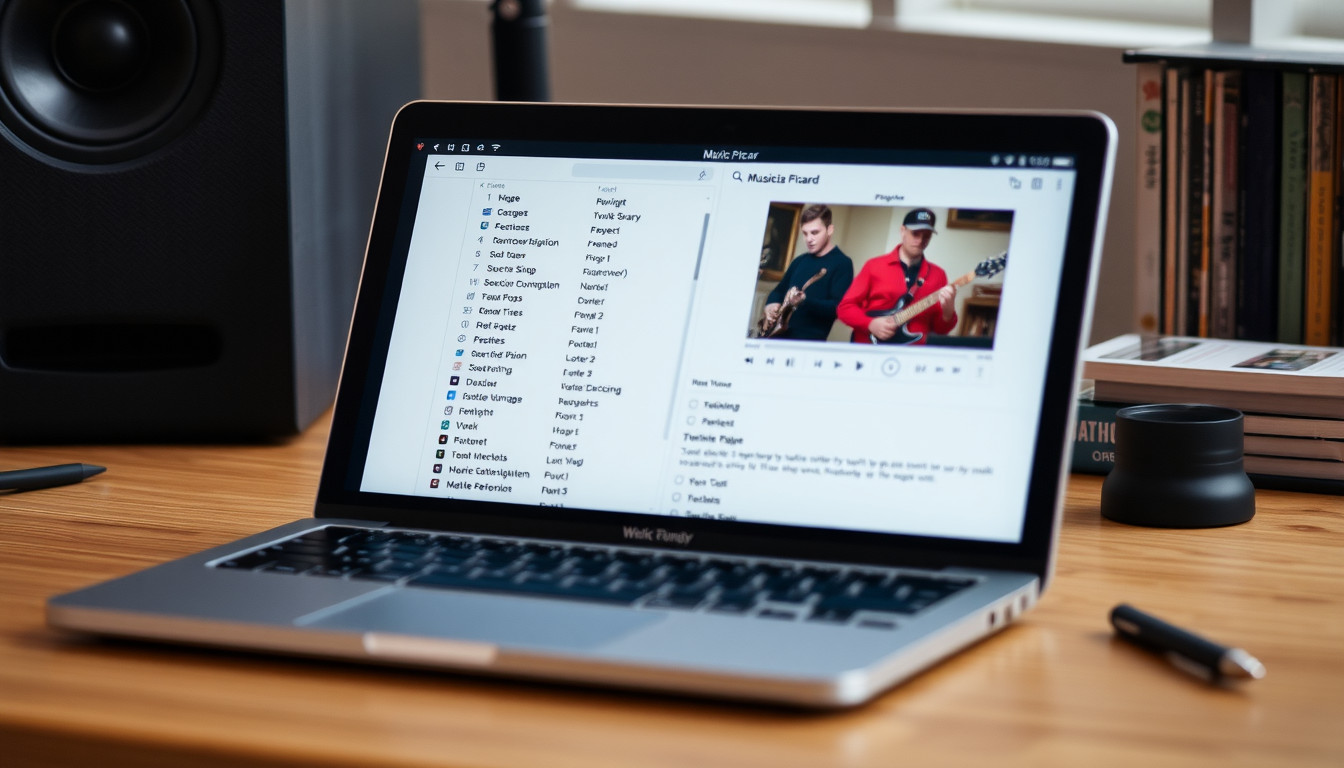
database source for accurate metadata to provide precise music metadata, which is critical in evaluating the tool’s effectiveness.
Table of Contents
1. What to check first
- Database source: Confirm that MusicBrainz features comprehensive coverage for your music collection, especially for niche genres or less common releases. The robustness of the MusicBrainz database impacts the likelihood of accurate tagging.
- Version compatibility: Use the latest stable release of Picard, such as version 2.13.3, which includes improvements in tagging algorithms and database updates. Download options are available for different operating systems, ensuring compatibility.
- File formats supported: Ensure that the music files you intend to organize—whether MP3, FLAC, WAV, or others—are compatible with Picard, which supports all major formats.
- Plugin and feature readiness: Check if additional plugins or features are necessary for your setup, such as plugins for cover art or specific metadata fields.
2. How to interpret the result
If Picard successfully matches a high percentage of your files with existing entries in the MusicBrainz database, and the tags reflect known information about your music, it indicates a positive evaluation. Conversely, frequent mismatches or vague identifications suggest that the database coverage may be insufficient for your collection or that manual curation might be necessary. Evidence of good performance includes accurate artist and album tags, correct track ordering, and matching cover art. If issues arise, consider whether upgrading to a newer Picard version or supplementing with manual editing will suffice. Ultimately, your decision should weigh the software’s ability to handle your collection accurately against the effort required for manual correction.
A Step-by-Step Approach to Musicbrainz Picard
Organizing and tagging music files efficiently requires a strategic approach that leverages MusicBrainz Picard’s capabilities. This software uses audio fingerprinting technology, such as AcoustID and Chromaprint, to identify music files based on sound, even when metadata is missing or incorrect. With a clear step-by-step process, users can improve their music library’s accuracy and consistency, reducing manual editing and ensuring proper attribution for each track.
audio fingerprinting technology to identify and tag music files based on sound, even when metadata is missing.
1. Prepare the essentials
- Download and install the latest version of MusicBrainz Picard suitable for your operating system from the official website, paying attention to the stability and compatibility of the release.
- Ensure your music files are stored in a dedicated folder, organized as needed, to streamline batch processing.
- Familiarize yourself with the plugin options and default settings in Picard to optimize performance for different audio formats and library structures.
2. Take the first action
- Launch MusicBrainz Picard and add your music files or folders by dragging them into the interface or using the “Add Files” or “Add Folder” options.
- Allow Picard to scan the files, which may involve audio fingerprinting to identify unknown or poorly tagged music based on sound rather than metadata, which is especially useful for files with missing or inaccurate tags.
- Review the initial tags that Picard suggests, paying attention to audio matching confidence levels, and decide whether to manually accept or reject certain identifications.
3. Check the early result
- Examine the identified tracks, check for consistency, and verify that the tags reflect the correct artist, album, and track title.
- Use the built-in lookup tools to compare with online databases like MusicBrainz itself to confirm accurate metadata attribution.
- If discrepancies appear, adjust tags manually or re-run the identification process with refined settings, such as adjusting fingerprinting sensitivity or enabling specific plugins to improve matches.
4. Adjust for changing conditions
- Refine your workflow by incorporating additional plugins or metadata sources, such as Discogs or Cover Art Archive, for more comprehensive tagging and artwork retrieval.
- Implement batch actions for consistent updates across large batches, such as fixing naming conventions or embedding album art.
- Periodically rescan your library to identify new additions or to correct any misclassifications, especially when applying updates or plugin improvements.
- Consider creating custom scripts or rules for automated handling of common issues, balancing automation with manual oversight for best accuracy.
Following this structured approach ensures the effective use of MusicBrainz Picard’s audio fingerprinting technology to identify, tag, and organize a music library systematically. Making decisions at each step—whether to accept automatic tags or to manually verify—helps build a reliable, accurate collection aligned with recognized music data standards.
Choosing the Right Approach for Your Situation
Selecting an appropriate method for organizing and tagging music files with MusicBrainz Picard depends heavily on your operating system, technical expertise, and specific workflow requirements. For users prioritizing simplicity and ease of use, especially those unfamiliar with command-line tools or development environments, a straightforward installation and usage approach usually suffices. Conversely, more advanced users or those seeking extensive customization and integration might consider more involved setups, such as building from source or using scripting capabilities. Understanding the trade-offs associated with each approach can help determine the best fit for a particular user’s needs.
1. When the simpler approach fits
For most casual to intermediate users, installing the precompiled binaries or package manager versions of MusicBrainz Picard simplifies the process. These versions are stable, regularly maintained, and compatible across all major desktop operating systems—Windows, Linux, and macOS—ensuring broad accessibility. This approach reduces setup time and minimizes the risk of bugs, making it an ideal choice for users who want to start tagging music files without delving into technical complexities.
2. When a more involved approach is justified
Advanced users or contributors interested in extending Picard’s functionality, automating workflows, or customizing integrations often opt to run Picard from source code. This requires familiarity with development tools (e.g., Git, Python) and understanding of software compilation. Building from source offers the latest features not yet available in official releases and allows for the development of custom plugins or modifications tailored to specific needs. However, it involves increased complexity, longer setup times, and a higher potential for bugs due to experimental features.
3. Trade-offs to consider
| Criteria | Simpler approach | Involved approach |
|---|---|---|
| Compatibility | Supported across all major OS (Windows, Linux, macOS) via official installers or package managers | Requires build environment setup, mainly on Linux or for custom Windows/macOS builds |
| Ease of installation | Quick, straightforward using official installers or package managers | Complex, involving compilation and dependency management |
| Stability and updates | Highly stable, regularly updated, and less likely to have bugs | Potentially latest features but with increased risk of bugs or instability |
| Customization and extensions | Limited to available plugins and configuration options | Highly customizable, suitable for developers and contributors |
| Technical expertise required | Low to moderate; suitable for most users | High; beneficial for experienced developers |
Overall, choosing between these approaches hinges on balancing ease of use against the desire for customization and technical involvement. Users should evaluate their familiarity with development tools and their specific requirements for music file management when deciding how to deploy MusicBrainz Picard effectively across different operating systems.
Mistakes That Change the Result
When using MusicBrainz Picard to organize and tag your music files, avoiding common mistakes is crucial to achieving accurate metadata. Many users inadvertently misconfigure settings, overlook essential plugins, or misinterpret error messages, leading to incorrect tags or failed file organization. Recognizing these pitfalls and understanding how to correct them can significantly improve tagging accuracy and workflow efficiency.
1. Mistaking a symptom for a cause
One common error involves focusing on immediate symptoms, such as mismatched tags or missing album art, without addressing underlying causes. For example, a user might repeatedly re-tag files with incorrect data, believing the problem is with Picard itself. In reality, the root cause could be incorrect or outdated lookup parameters, a mismatched MusicBrainz release ID, or network issues affecting data retrieval. Troubleshooting should start with verifying your connection to the MusicBrainz database and ensuring your lookup settings align with the target music genre and release type.
2. Skipping a critical condition
Another frequent mistake is neglecting to install or properly configure essential plugins or components, such as the MusicBrainz Picard plugin support system. Plugins extend Picard’s functionality—adding support for custom tagging frameworks, improving recognition algorithms, or integrating local databases. If a plugin is missing or misconfigured, Picard may not correctly identify files, resulting in partial or inaccurate tags. For example, users may overlook the need to update the Picard plugins directory or fail to enable the necessary plugin in the preferences, which can lead to incomplete data retrieval or incorrect matching.
Additionally, users might neglect to confirm that their Picard installation supports the specific file formats or tagging standards they are working with. Certain formats, such as FLAC or MP4, require specific plugins or settings. Ensuring all relevant components are installed and correctly configured prevents errors that could otherwise be mistaken for bugs in Picard itself.
In troubleshooting, effective correction involves reviewing the Picard logs for errors, verifying plugin status via preferences, and consulting documentation to clarify the necessary conditions for successful tagging. Keeping software updated and validating your lookup settings against the MusicBrainz database ensures that your workflow remains accurate and effective, reducing the risk of misorganized or improperly tagged music libraries.
When to Adapt or Seek More Help
Using MusicBrainz Picard as a music tagging tool offers a flexible and powerful way to organize your digital music collection. However, there are scenarios where your current approach may need adjustment or where additional support can enhance your experience. Recognizing these moments ensures you keep your library accurately tagged and compatible across various devices and formats.
1. Next Steps
If Picard successfully identifies and tags most of your files but some remain unchanged or incorrectly tagged, consider updating the software or plugins. The Picard community actively maintains a variety of plugins that extend format support and improve recognition capabilities, especially for less common formats or custom encodings. Visiting the official plugin repository can help locate tailored solutions.
In case your music collection includes unusual or proprietary formats—such as WMA or specialized formats used by certain audio devices—confirm that your version of Picard fully supports these. Supported formats include MP3, FLAC, OGG, M4A, WMA, WAV, among others. When format support is limited, converting files to more common, well-supported formats before tagging can be a practical step.
2. Limitations
While Picard has extensive format support, some files may pose challenges. For instance, files with damaged metadata or no embedded tags may fail to be correctly identified solely through acoustic fingerprinting or database lookup. In such cases, manual tagging may be required. Additionally, for very large libraries, the identification process can be resource-intensive, potentially requiring patience or hardware adjustments such as increasing RAM or processing power.
If encountering persistent identification issues—such as files that are recognized incorrectly or not at all—consult the Picard documentation or community forums. These resources can provide tailored advice, troubleshooting tips, or alternative strategies, including adjusting recognition settings, tweaking metadata, or manually entering data. When format or metadata limitations surpass the feature set of Picard, considering supplementary tools or even professional metadata services might be a worthwhile investment.
Ultimately, if ongoing challenges hinder your workflow or undermine your desired degree of accuracy, evaluating whether to switch to other software that offers specialized support for your formats or needs could be the next logical step. Decision points include whether your collection consistently includes unsupported formats, or if the current tools cannot keep pace with your organization goals.
Frequently Asked Questions
1. What formats does MusicBrainz Picard support?
Picard supports MP3, FLAC, OGG, M4A, WAV, and other common audio formats, depending on format compatibility with tagging standards.
2. How do I install Picard on Windows, macOS, and Linux?
Download the installer from the official website for your operating system—Windows, macOS, or Linux—and follow the installation instructions tailored to each platform.
3. Can Picard automatically identify my music files?
Yes, Picard uses audio fingerprinting and the MusicBrainz database to automatically identify and tag music files with minimal manual intervention.
4. How do I troubleshoot common tagging errors?
Check file formats for support, verify plugin installations, and ensure your files are not DRM protected; manually correct or re-import files if tags are inconsistent.
5. Are plugins necessary for advanced features?
Plugins are optional but often required to enable features like cover art embedding or support for less common formats.
6. What are the system requirements for Picard?
Picard requires a modern operating system (Windows, macOS, or Linux), sufficient RAM, and storage space; the exact specifications depend on your version.
7. How can I contribute to Picard development?
You can participate by reporting bugs, suggesting features, or contributing code via the project’s official repositories or forums.